


Split Tunneling is available to Windows users via IP/Hostname or app. Here is how to enable this feature on your Windows device:
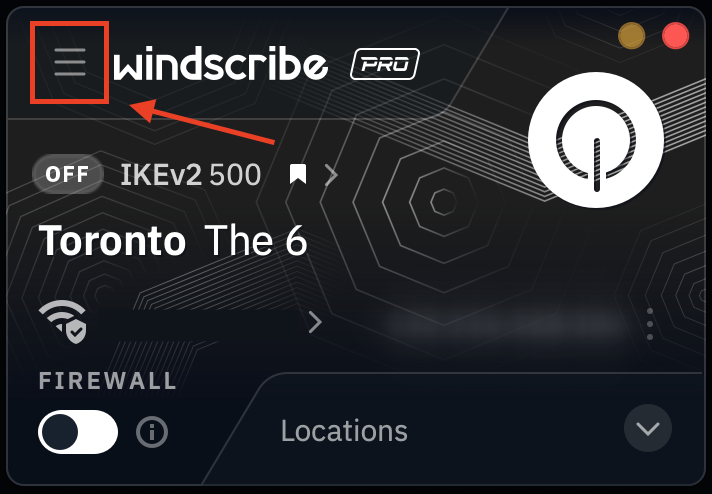
Open the Windscribe desktop app, and click the Preferences/Menu button in the top left
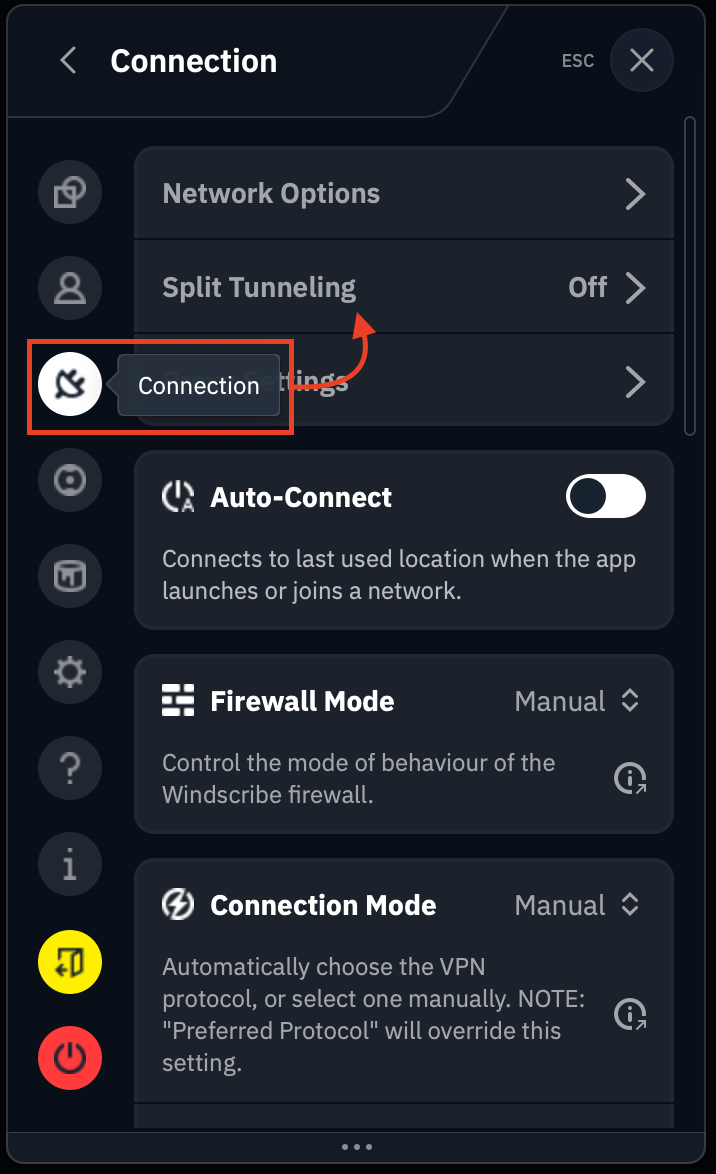
Go to the Connection tab/sub-menu (plug icon) & select the Split Tunnel option
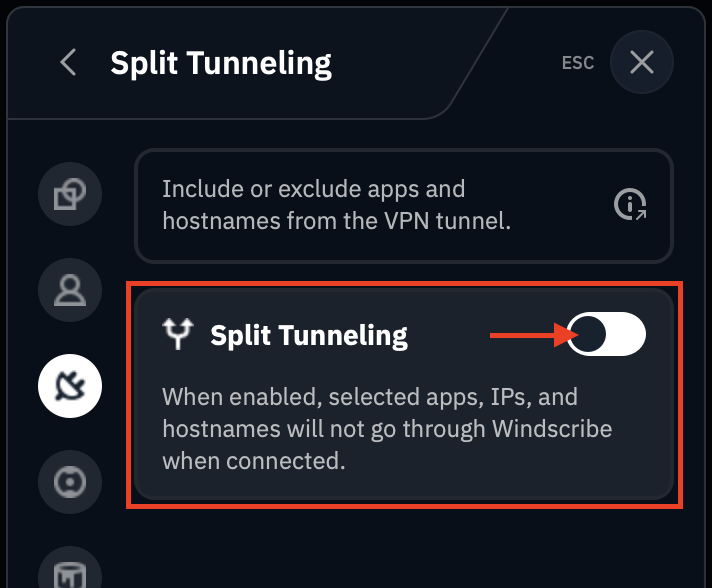
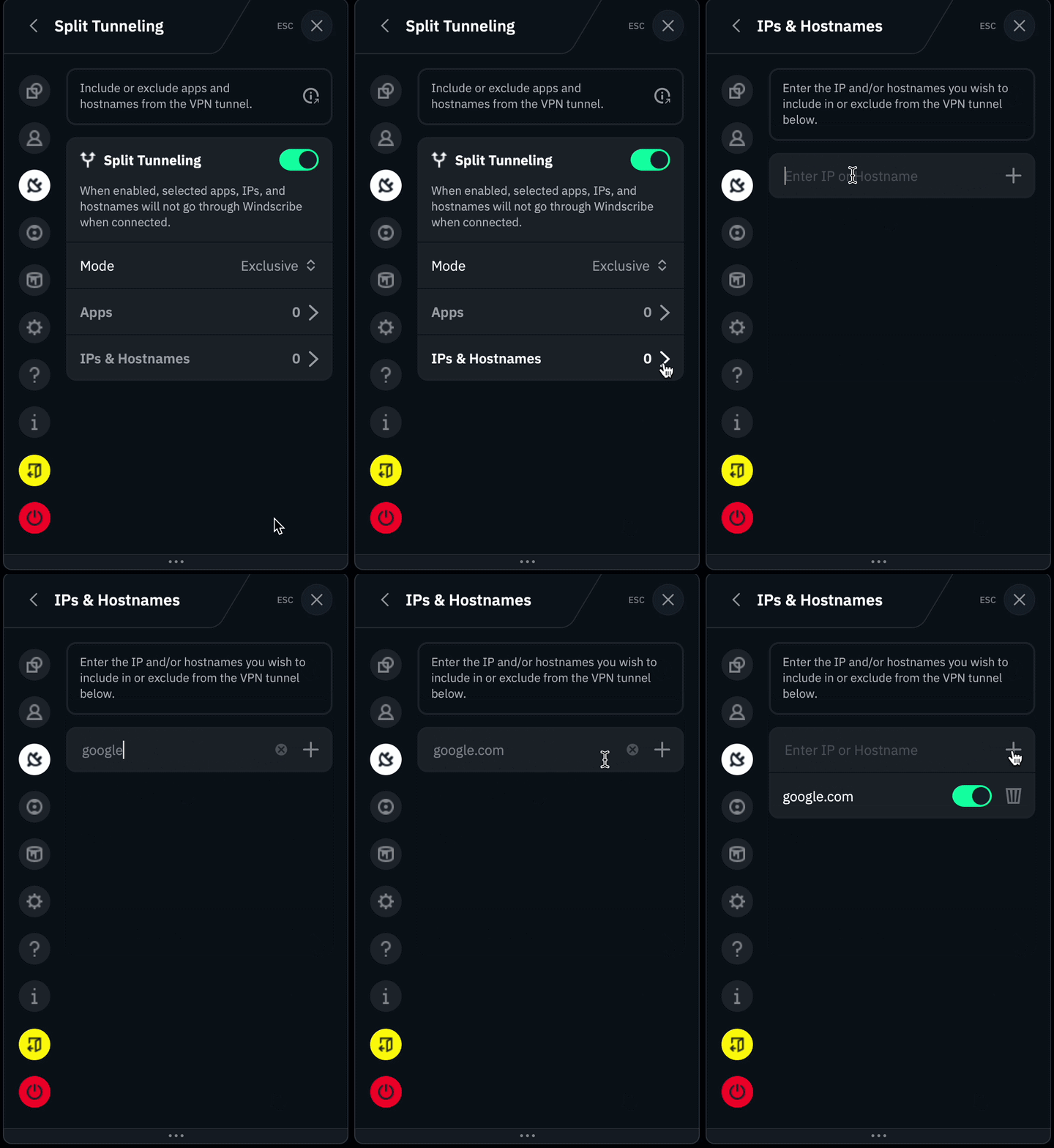
Toggle the switch to the ON position (green)
Choose which mode of split tunneling you'd like to use: Exclusive or Inclusive
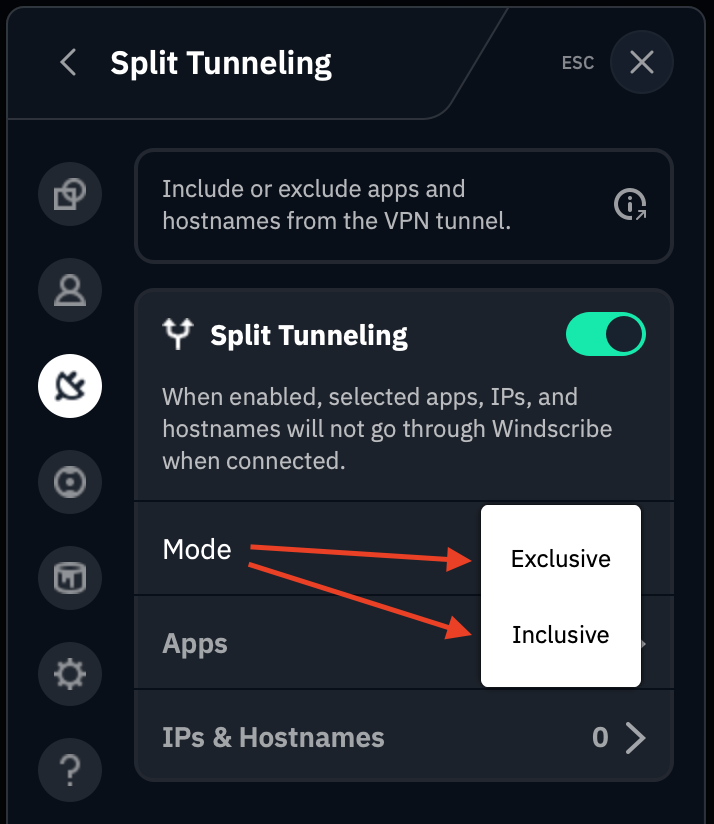
At this point you'll need to select how you'd like to build to your Split Tunnel list, via App or IP/Hostname.
Adding Applications
Be advised that only traditional software that runs from an executable (.exe) file. Windows apps downloaded from the Microsoft Store such as Mail function differently and will not work with Split Tunneling.
There are two ways to select applications for the desktop client's Split Tunneling feature:
Search function/Recently Opened (this is the easier of the two methods)
Press on the Apps option to open the list of applications added to the Split Tunneling list
Click the search icon to open a short list of the recently opened applications. Note: this will only search the most recent application list, not all applications on the computer
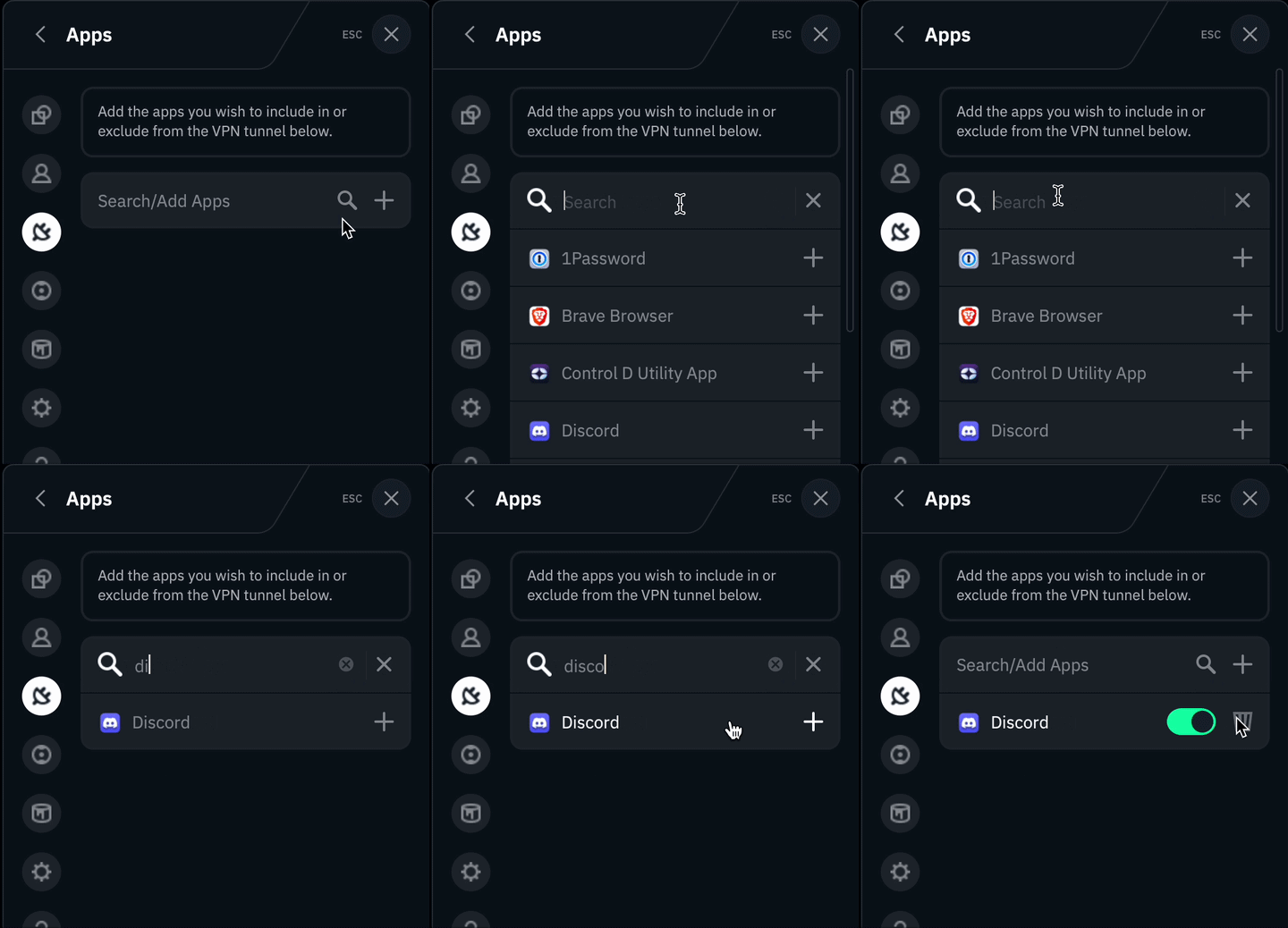
Alternately, you can use the the + icon to search specifically for applications (.exe) on your device manually.